> ## Documentation Index
> Fetch the complete documentation index at: https://openrouter.ai/docs/llms.txt
> Use this file to discover all available pages before exploring further.
# OAuth PKCE
> Connect your users to OpenRouter
Users can connect to OpenRouter in one click using [Proof Key for Code Exchange (PKCE)](https://oauth.net/2/pkce/).
Here's a step-by-step guide:
## PKCE Guide
### Step 1: Send your user to OpenRouter
To start the PKCE flow, send your user to OpenRouter's `/auth` URL with a `callback_url` parameter pointing back to your site:
```txt title="With S256 Code Challenge (Recommended)" wrap lines theme={null}
https://openrouter.ai/auth?callback_url=&code_challenge=&code_challenge_method=S256
```
```txt title="With Plain Code Challenge" wrap lines theme={null}
https://openrouter.ai/auth?callback_url=&code_challenge=&code_challenge_method=plain
```
```txt title="Without Code Challenge" wrap lines theme={null}
https://openrouter.ai/auth?callback_url=
```
The `code_challenge` parameter is optional but recommended.
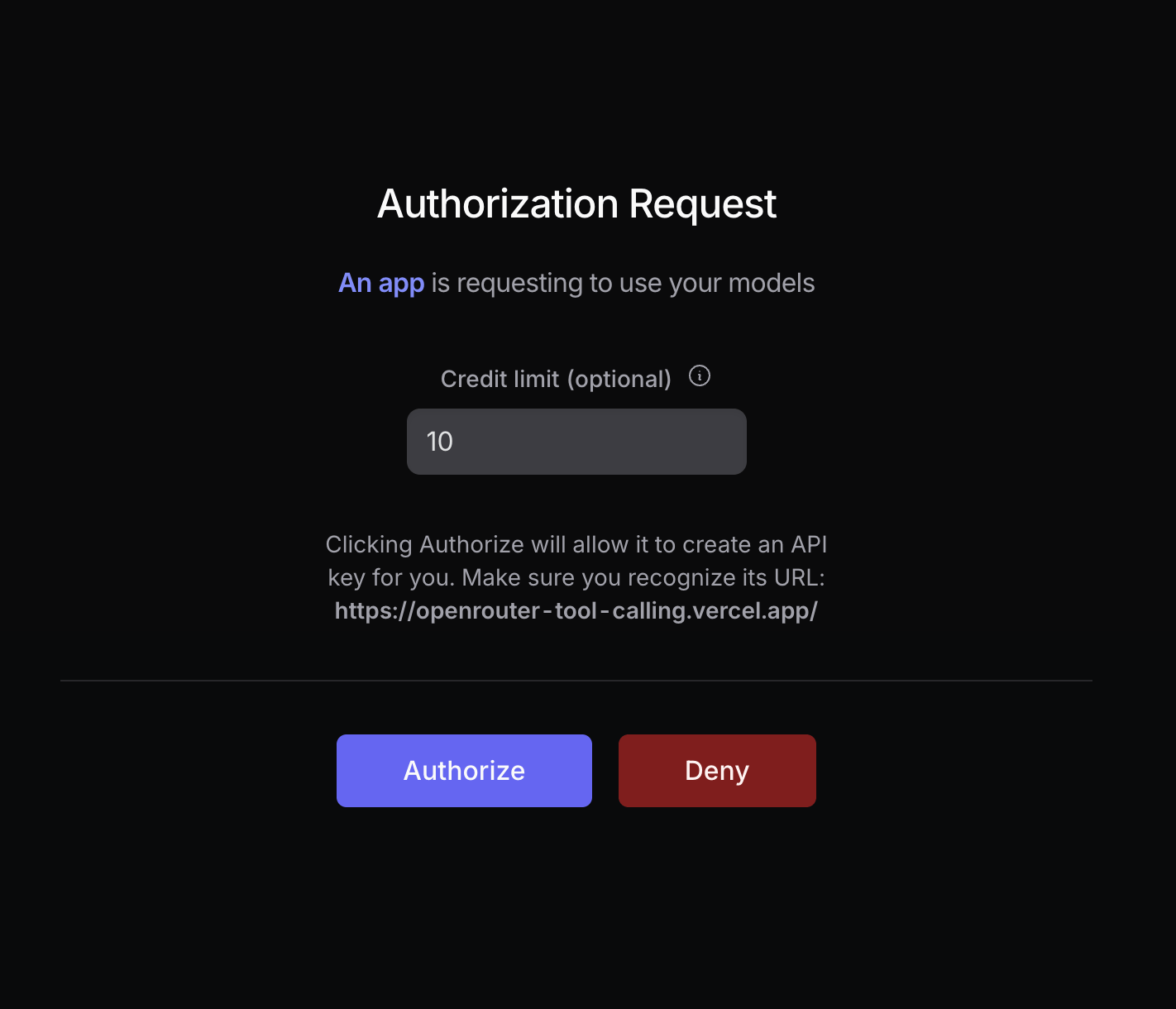
Your user will be prompted to log in to OpenRouter and authorize your app. After authorization, they will be redirected back to your site with a `code` parameter in the URL:
 **Use SHA-256 for Maximum Security**
For maximum security, set `code_challenge_method` to `S256`, and set `code_challenge` to the base64 encoding of the sha256 hash of `code_verifier`.
For more info, [visit Auth0's docs](https://auth0.com/docs/get-started/authentication-and-authorization-flow/call-your-api-using-the-authorization-code-flow-with-pkce#parameters).
#### How to Generate a Code Challenge
The following example uses the Web Crypto API and the Buffer API to generate a code challenge for the S256 method. You will need a bundler to use the Buffer API in the web browser:
```typescript title="Generate Code Challenge" lines theme={null}
import { Buffer } from 'buffer';
async function createSHA256CodeChallenge(input: string) {
const encoder = new TextEncoder();
const data = encoder.encode(input);
const hash = await crypto.subtle.digest('SHA-256', data);
return Buffer.from(hash).toString('base64url');
}
const codeVerifier = 'your-random-string';
const generatedCodeChallenge = await createSHA256CodeChallenge(codeVerifier);
```
#### Localhost Apps
Localhost callbacks are supported on **any port**. This is useful for CLI tools and local-first apps that bind to an arbitrary free OS port for the OAuth callback (e.g. `http://localhost:51423/callback`).
Localhost apps are assigned a fixed title matching the host and port (e.g. `localhost:3000`) but will not appear in the OpenRouter marketplace or rankings. If you want a custom app name and marketplace presence, use a public URL as the callback instead.
When moving to production, replace the localhost callback URL with a public URL (your project website or a GitHub repo link) to get full app attribution.
#### Headless Apps (SSH Servers, Containers)
If your app runs where a localhost callback can't be reached (an SSH session, a remote dev box, a container), omit `callback_url` entirely:
```txt title="Headless (No Callback)" wrap lines theme={null}
https://openrouter.ai/auth?code_challenge=&code_challenge_method=S256&key_label=
```
After the user authorizes, the page displays the authorization code on screen instead of redirecting. The user copies it and pastes it into your app (e.g. at a terminal prompt), and you exchange it in Step 2 exactly as usual.
A `code_challenge` is **required** in this mode: because the code is displayed on screen, PKCE ensures it is useless to anyone without your app's `code_verifier`. The code is single-use and expires after 10 minutes.
#### Optional Parameters
| Parameter | Effect |
| ----------------------- | ----------------------------------------------------------------------------------------------------------------------------------------------------------------------------------------------------------------------------------------------------- |
| `key_label` | Prefills the label of the API key that will be created. |
| `workspace_id` | Preselects the workspace (UUID) for the new API key. The user can still change the selection. If the workspace is not in the user's active account, nothing is preselected and the user must pick one. |
| `required_workspace_id` | Requires the new API key to be created in this workspace (UUID). The picker is locked to it. If the workspace is not in the user's active account, the page shows an error and the user cannot authorize until they switch to an account that has it. |
If both are present, `required_workspace_id` takes precedence. Use `workspace_id` to suggest a workspace and `required_workspace_id` to enforce one (for example, an internal onboarding flow that must mint keys into a specific team workspace).
Workspace IDs are validated server-side against the account the user authorizes with. A workspace the user cannot access is rejected, regardless of what the URL asked for.
### Step 2: Exchange the code for a user-controlled API key
After the user logs in with OpenRouter, they are redirected back to your site with a `code` parameter in the URL:
**Use SHA-256 for Maximum Security**
For maximum security, set `code_challenge_method` to `S256`, and set `code_challenge` to the base64 encoding of the sha256 hash of `code_verifier`.
For more info, [visit Auth0's docs](https://auth0.com/docs/get-started/authentication-and-authorization-flow/call-your-api-using-the-authorization-code-flow-with-pkce#parameters).
#### How to Generate a Code Challenge
The following example uses the Web Crypto API and the Buffer API to generate a code challenge for the S256 method. You will need a bundler to use the Buffer API in the web browser:
```typescript title="Generate Code Challenge" lines theme={null}
import { Buffer } from 'buffer';
async function createSHA256CodeChallenge(input: string) {
const encoder = new TextEncoder();
const data = encoder.encode(input);
const hash = await crypto.subtle.digest('SHA-256', data);
return Buffer.from(hash).toString('base64url');
}
const codeVerifier = 'your-random-string';
const generatedCodeChallenge = await createSHA256CodeChallenge(codeVerifier);
```
#### Localhost Apps
Localhost callbacks are supported on **any port**. This is useful for CLI tools and local-first apps that bind to an arbitrary free OS port for the OAuth callback (e.g. `http://localhost:51423/callback`).
Localhost apps are assigned a fixed title matching the host and port (e.g. `localhost:3000`) but will not appear in the OpenRouter marketplace or rankings. If you want a custom app name and marketplace presence, use a public URL as the callback instead.
When moving to production, replace the localhost callback URL with a public URL (your project website or a GitHub repo link) to get full app attribution.
#### Headless Apps (SSH Servers, Containers)
If your app runs where a localhost callback can't be reached (an SSH session, a remote dev box, a container), omit `callback_url` entirely:
```txt title="Headless (No Callback)" wrap lines theme={null}
https://openrouter.ai/auth?code_challenge=&code_challenge_method=S256&key_label=
```
After the user authorizes, the page displays the authorization code on screen instead of redirecting. The user copies it and pastes it into your app (e.g. at a terminal prompt), and you exchange it in Step 2 exactly as usual.
A `code_challenge` is **required** in this mode: because the code is displayed on screen, PKCE ensures it is useless to anyone without your app's `code_verifier`. The code is single-use and expires after 10 minutes.
#### Optional Parameters
| Parameter | Effect |
| ----------------------- | ----------------------------------------------------------------------------------------------------------------------------------------------------------------------------------------------------------------------------------------------------- |
| `key_label` | Prefills the label of the API key that will be created. |
| `workspace_id` | Preselects the workspace (UUID) for the new API key. The user can still change the selection. If the workspace is not in the user's active account, nothing is preselected and the user must pick one. |
| `required_workspace_id` | Requires the new API key to be created in this workspace (UUID). The picker is locked to it. If the workspace is not in the user's active account, the page shows an error and the user cannot authorize until they switch to an account that has it. |
If both are present, `required_workspace_id` takes precedence. Use `workspace_id` to suggest a workspace and `required_workspace_id` to enforce one (for example, an internal onboarding flow that must mint keys into a specific team workspace).
Workspace IDs are validated server-side against the account the user authorizes with. A workspace the user cannot access is rejected, regardless of what the URL asked for.
### Step 2: Exchange the code for a user-controlled API key
After the user logs in with OpenRouter, they are redirected back to your site with a `code` parameter in the URL:
 Extract this code using the browser API:
```typescript title="Extract Code" lines theme={null}
const urlParams = new URLSearchParams(window.location.search);
const code = urlParams.get('code');
```
Then use it to make an API call to `https://openrouter.ai/api/v1/auth/keys` to exchange the code for a user-controlled API key:
```typescript title="Exchange Code" lines theme={null}
const response = await fetch('https://openrouter.ai/api/v1/auth/keys', {
method: 'POST',
headers: {
'Content-Type': 'application/json',
},
body: JSON.stringify({
code: '',
code_verifier: '', // If code_challenge was used
code_challenge_method: '', // If code_challenge was used
}),
});
const { key } = await response.json();
```
### Deep-link to the user's key
Once you have the API key, you can create links to the user's OpenRouter
activity and key settings pages by hashing the key with SHA-256. Use the
lowercase hexadecimal digest in both URLs:
```typescript title="Create Key Links" lines theme={null}
async function sha256Hex(value: string) {
const data = new TextEncoder().encode(value);
const hash = await crypto.subtle.digest('SHA-256', data);
return Array.from(new Uint8Array(hash), (byte) =>
byte.toString(16).padStart(2, '0'),
).join('');
}
const keyHash = await sha256Hex(key);
const logsUrl = `https://openrouter.ai/logs?api_key_hash=${keyHash}`;
const settingsUrl = `https://openrouter.ai/keys/${keyHash}`;
```
The links only work for the signed-in owner of the API key. If the hash does
not resolve for the viewer, the page returns a `404` rather than showing
unfiltered data.
And that's it for the PKCE flow!
### Step 3: Use the API key
Store the API key securely within the user's browser or in your own database, and use it to [make OpenRouter requests](/docs/api_reference/overview).
```typescript title="TypeScript SDK" lines theme={null}
import { OpenRouter } from '@openrouter/sdk';
const openRouter = new OpenRouter({
apiKey: key, // The key from Step 2
});
const completion = await openRouter.chat.send({
chatRequest: {
model: '~openai/gpt-sol-latest',
messages: [
{
role: 'user',
content: 'Hello!',
},
],
stream: false,
},
});
if (completion instanceof ReadableStream) {
throw new Error('Expected a non-streaming response');
}
console.log(completion.choices[0].message);
```
```typescript title="TypeScript (fetch)" lines theme={null}
fetch('https://openrouter.ai/api/v1/chat/completions', {
method: 'POST',
headers: {
Authorization: `Bearer ${key}`,
'Content-Type': 'application/json',
},
body: JSON.stringify({
model: '~openai/gpt-sol-latest',
messages: [
{
role: 'user',
content: 'Hello!',
},
],
}),
});
```
## Error Codes
* `400 Invalid code_challenge_method`: Make sure you're using the same code challenge method in step 1 as in step 2.
* `403 Invalid code or code_verifier`: Make sure your user is logged in to OpenRouter, and that `code_verifier` and `code_challenge_method` are correct.
* `403 Authorization code expired`: Authorization codes expire 10 minutes after issuance. Restart the OAuth flow and exchange the new code promptly.
* `405 Method Not Allowed`: Make sure you're using `POST` and `HTTPS` for your request.
## External Tools
* [PKCE Tools](https://example-app.com/pkce)
* [Online PKCE Generator](https://tonyxu-io.github.io/pkce-generator/)
Extract this code using the browser API:
```typescript title="Extract Code" lines theme={null}
const urlParams = new URLSearchParams(window.location.search);
const code = urlParams.get('code');
```
Then use it to make an API call to `https://openrouter.ai/api/v1/auth/keys` to exchange the code for a user-controlled API key:
```typescript title="Exchange Code" lines theme={null}
const response = await fetch('https://openrouter.ai/api/v1/auth/keys', {
method: 'POST',
headers: {
'Content-Type': 'application/json',
},
body: JSON.stringify({
code: '',
code_verifier: '', // If code_challenge was used
code_challenge_method: '', // If code_challenge was used
}),
});
const { key } = await response.json();
```
### Deep-link to the user's key
Once you have the API key, you can create links to the user's OpenRouter
activity and key settings pages by hashing the key with SHA-256. Use the
lowercase hexadecimal digest in both URLs:
```typescript title="Create Key Links" lines theme={null}
async function sha256Hex(value: string) {
const data = new TextEncoder().encode(value);
const hash = await crypto.subtle.digest('SHA-256', data);
return Array.from(new Uint8Array(hash), (byte) =>
byte.toString(16).padStart(2, '0'),
).join('');
}
const keyHash = await sha256Hex(key);
const logsUrl = `https://openrouter.ai/logs?api_key_hash=${keyHash}`;
const settingsUrl = `https://openrouter.ai/keys/${keyHash}`;
```
The links only work for the signed-in owner of the API key. If the hash does
not resolve for the viewer, the page returns a `404` rather than showing
unfiltered data.
And that's it for the PKCE flow!
### Step 3: Use the API key
Store the API key securely within the user's browser or in your own database, and use it to [make OpenRouter requests](/docs/api_reference/overview).
```typescript title="TypeScript SDK" lines theme={null}
import { OpenRouter } from '@openrouter/sdk';
const openRouter = new OpenRouter({
apiKey: key, // The key from Step 2
});
const completion = await openRouter.chat.send({
chatRequest: {
model: '~openai/gpt-sol-latest',
messages: [
{
role: 'user',
content: 'Hello!',
},
],
stream: false,
},
});
if (completion instanceof ReadableStream) {
throw new Error('Expected a non-streaming response');
}
console.log(completion.choices[0].message);
```
```typescript title="TypeScript (fetch)" lines theme={null}
fetch('https://openrouter.ai/api/v1/chat/completions', {
method: 'POST',
headers: {
Authorization: `Bearer ${key}`,
'Content-Type': 'application/json',
},
body: JSON.stringify({
model: '~openai/gpt-sol-latest',
messages: [
{
role: 'user',
content: 'Hello!',
},
],
}),
});
```
## Error Codes
* `400 Invalid code_challenge_method`: Make sure you're using the same code challenge method in step 1 as in step 2.
* `403 Invalid code or code_verifier`: Make sure your user is logged in to OpenRouter, and that `code_verifier` and `code_challenge_method` are correct.
* `403 Authorization code expired`: Authorization codes expire 10 minutes after issuance. Restart the OAuth flow and exchange the new code promptly.
* `405 Method Not Allowed`: Make sure you're using `POST` and `HTTPS` for your request.
## External Tools
* [PKCE Tools](https://example-app.com/pkce)
* [Online PKCE Generator](https://tonyxu-io.github.io/pkce-generator/)